In November 2009 I cleaned this page up by removing some really outdated material and fixing some broken links, but this page has not had a serious update for a long time. Routers have changed significantly and brands have come and gone. I strongly recommend getting a router that has the horsepower to run third party firmware, and then installing some. There are a number of good choices available, see the
WRT54G notes section near the bottom of the page for links that can help.
Please note that the configuration pages have changed a lot in the newer versions of Firmware, but the principles are the same. And with other brands of routers many of the same principles apply.
For an excellent generic explanation of how NAT routers work and what the benefits are, see GRC's NAT page.
Sometimes your connection will fail, and you need to determine the failure point. These troubleshooting instructions could help you pinpoint the problem and get faster help from your ISP if needed. I'd suggest printing them out and saving them for the day that you can't get to the internet.
January 15, 2007. We finally got around to getting a new router, a Linksys WRT54G. The default settings are acceptable, although I'd recommend changing a few of the wireless ones just to be safe. And they've broken the logging functions. For details see my WRT54G notes towards the bottom of the page.
There are several reasons to use a router with high speed internet connections. You can use a router to share a single connection with multiple computers, you can connect wirelessly (with the right router), if someone comes over with a laptop computer they can use your connection while visiting. and the router adds a layer of security by blocking or dropping unexpected traffic that's inbound from the internet. Any well known brand should do, but there are some things to keep in mind. Cheaper routers will get you less options, and possibly poorer security. Some people have reported that their connection speed is slowed down with some routers. Older routers are less likely to be able to handle the high volume of newer connections. With wireless routers you want to be sure they support the latest security features and that they're compatible with whatever security your computers use. WEP is no longer considered secure. And with respect to multiple computers on a single connection, various ISPs have different policies, but in most cases it appears that they only want more money if you want more external IP addresses. With a router you can have multiple computers on one external IP address.
It's up to you if you want to also use a firewall. Routers protect you from inbound hazards, if you want to control outbound traffic, or protect computers on your network from each other, you may want to consider a firewall. If you have more than one computer, and you're behind a router, try scanning your own computers from within your network, with and without the firewalls running. That way you'll know what your vulnerabilities are if you ever need to connect without the router. By doing the testing behind the router on your own computers you're safe from the hazards of the internet. One tool you can use for that is Superscan4. Go to Foundstone.com click on the Resources tab, then Free Tools then Scanning Tools. You can download it from that page.
For a simple test from the internet side, go to ShieldsUp at GRC and run the "All Service Ports" test. Routers and firewalls will provide similar results after some tweaking, but routers tend to be safe out of the box, and the firewall makes a lot more noise about it. (The warnings can be turned off for a firewall.) A couple of things to keep in mind:
- Closed and Stealth are effectively equivalent. A port that doesn't allow traffic in is secure, whether it simply doesn't respond or responds with
Closed
. The main advantage to being Stealth
is that you're less likely to actually be targeted if it doesn't look like you're even there to the original probe. If there's a Closed
response to the initial scan, then other ports may be scanned too. As long as they're closed you're still not at any significant risk. You only really need to be worried about Open
ports. Close those immediately unless you know why it's open, and you know it's secure.
Steve's ShieldsUp page only tests 1056 ports. There are 65,000 ports available. Just for TCP. And another 65,000 EDP ports. There are vulnerabilities associated with many of them, and new ones being found all the time. Specific ports may have been opened up by programs you have running (perhaps without your knowledge) on your computer. People scanning for open ports can check any or all of them. Most of the sites that used to offer comprehensive port scans have stopped, so you'll have to look around if you're interested. Or get a friend to scan your address, and you can scan theirs.
You don't want to dawdle around before installing a firewall and/or router. And would be preferred. I get an average of 20-30 scans an hour, and that number has been increasing for a couple of years. Most are benign in the sense that they aren't a type that would affect my computer anyway, but at least some of them could cause problems if I didn't have some protection and/or had something installed that I didn't know about. If you happen to get one of those scans right away, you could be in for serious trouble. Worm scans are very common and the lifespan of an unprotected XP computer on the internet can be measured in minutes unless your ISP happens to be blocking the ports that will infect it. Many are, some aren't. But a router protects you from all of the known and [so far] unknown scanning vulnerabilities.
Cable IP ranges are a favorite target because they have a relatively high percentage of unprotected computers and have always on, high speed connections. So if they can get access to your computer, they can use it to do a lot more scans, or to attack a web site, or store files that they are worried about keeping on their own computer, or send spam, or pretty much anything they want. With everything being traced back to you instead of them. A huge percentage of spam is sent from compromised home computers with a high speed connection.
Setup Instructions
The instructions for setting up the Linksys are in the manual and pretty simple. In my case the default settings worked fine for nearly everything. There are only 5 things I recommend checking to be sure they are setup correctly, plus a couple that are worth checking to be sure they haven't changed the defaults. The locations of these tabs may vary slightly depending on the version of the firmware that is in your router, sometimes they will be under the "Advanced" tab, sometimes not. This applies specifically to Linksys routers, but since the industry (like most) is Monkey See, Monkey Do, most other routers will probably have something similar. Also please bear in mind that I'm only covering settings that are related to security. It's worth looking over the other options to see if they'll help you. Some could increase the speed of your data transfers. There's detailed information on the various [older] versions of Linksys firmware at Hansenonline, including descriptions of what the different tabs do. There's a good FAQs about Linksys Routers at DSLReports Linksys FAQ. For more information specific to Linksys you can check the DSLReports Linksys Forums. Whatever router you use, or if you use third party firmware it's also a good idea to periodically check for firmware updates. Look for your model in the dropdown list and follow the links to Firmware. Avoid anything that's brand new in case of bugs, but anything over a couple of weeks old is probably a good thing to do.
For some speed testing, try the Speed and Tweak Tests at DSLReports Tools. Speedtest.net also has a nice test, but it requires JavaScript and Flash.
To get to the router settings, open your browser, type http://192.168.1.1 in the address bar (this address may vary with other brands of routers) and press Enter. For Linksys routers tab past the user name field to the Password box and type in "admin" without the quotes. Then it's just a matter of using the Tabs at the top of the pages to get to different settings.
The first thing to change is the Password. Since it's only accessible from your internal computer(s) behind the router you may not need to make it your most difficult password, but don't make it too easy either. There have been conflicting reports of a vulnerability that allows access to the log in screen from the internet. And of course you could make a configuration mistake. Some routers or firmware versions allow "Remote Administration", if yours does, be sure it's Disabled. Once you change the password, the next screen will require you to log in again.
Then you want to go to these tabs. You can click on the thumbnails next to each section for a larger image. These are from an older version of firmware, but the concepts are the same.

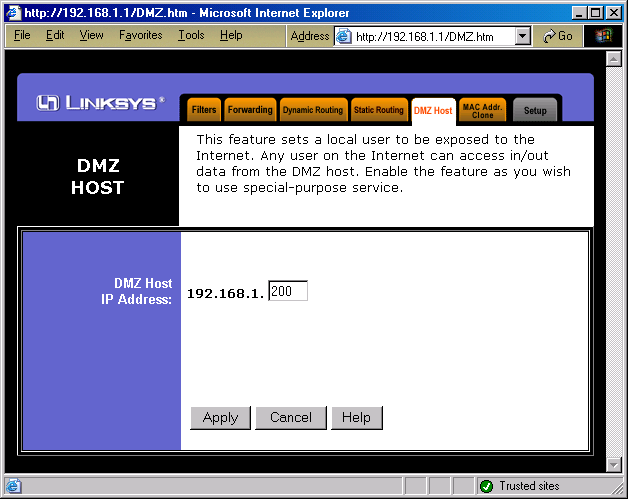
On the "DMZ" tab, set the DMZ IP host address to 192.168.1.200. What this does is makes any computer at that address actually be unprotected by the router. While that would probably not be a Good Thing under normal circumstances, in this case it's cool. Because you don't have a computer at that address unless you have specifically forced a computer to log in with that address. So what the router does is send any unsolicited inbound traffic (scans or whatever) to the computer at that address. But since there's no computer there, there is no response. Scans (or whatever) simply go off into the electronic ozone, and your router (and any computers behind it) are invisible from the outside. Some routers or versions of firmware may not need the DMZ to secure all ports. But firmware changes or something else could cause a problem later, so the DMZ is an extra layer of protection. You can also use the DMZ to put a real computer "out there" if you need/want to, but you should only do this if you're sure you know what you're doing. Make sure that whatever address you use is outside the range of addresses that can be assigned by DHCP if you're using that on the router.
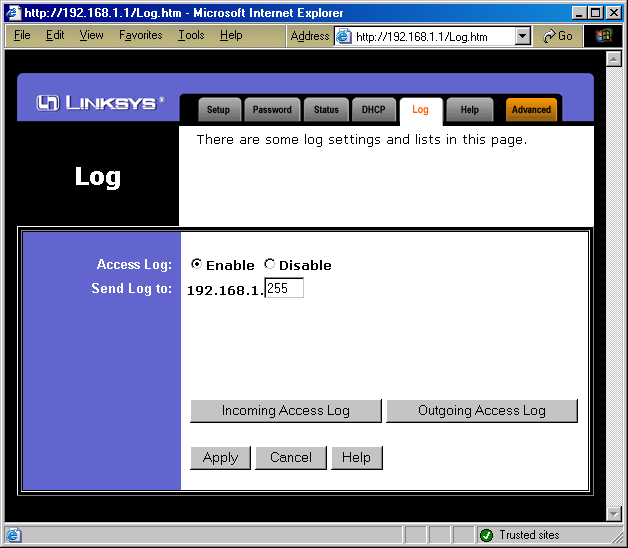
 On the "Log" tab, enable logging, and if it isn't set by default, "Send" the logs to 192.168.1.255. That causes the data to be broadcast to your whole network instead of sent to a specific computer. If you're using fixed IPs you can send it to a specific computer if you prefer. If you're running a firewall behind your router, you'll have to allow the SNMP Trap port (UDP port 162) through the firewall in order for the logging program to show you anything. If you're using the Windows XP ICF you'll have to add the port there too. Go to the NIC properties, click the Advanced tab, click Settings, click on Add. Put in a Description of Service like "SNMP Trap". Enter the IP of the source of the reports, your router in this case. External and Internal ports would both be 162. Click on the UDP radio button. OK your way out. You can only run one logging program (or anything using UDP port 162) at a time on any one computer since they don't share that port. Then you need an SNMP logging program. This will let you see the in and outbound traffic through the router. It's good for troubleshooting and also occasionally for spotting the unexpected outbound connection. And it can give you a warm fuzzy feeling to see the blocked inbound traffic. It will show up in the logs as going to the DMZ IP of 192.168.1.200. You can run the logging program occasionally, or leave it running all the time. There are lots of free log viewers. SNMP Logger is a very basic one. One's with more features include Wall Watcher and Log Viewer. Linklogger has a 30 day trial to see if you want to buy it. If you feel like putting those logs to good use you can see about using them to help compile attack reports by submitting them to either MyNetWatchMan or DShield. You'll need to be sure the log format is acceptable to the site before you can submit them. WallWatcher has the ability to automatically send your reports to either DShield or MyNetWatchman once you make some easy initial settings. Check the sites for the software you use and DShield or MyNetWatchman to see if there's an easy way to submit your logs. January 2007. On my new WRT54G inbound logging only works if the DMZ function is enabled. But external logging no longer works anyway.

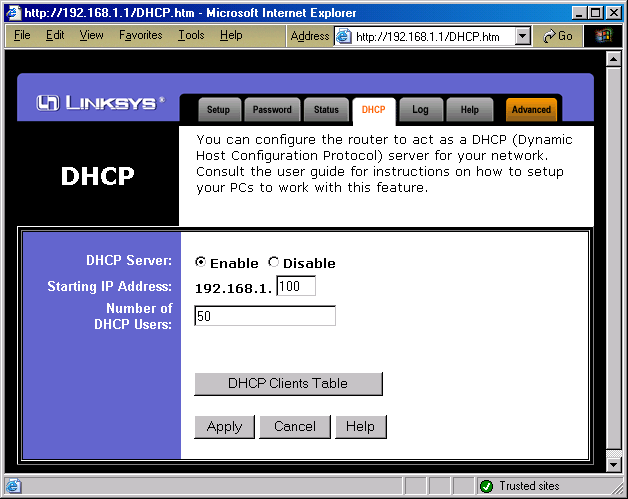
This should be the default, but check it to be sure. On the DHCP tab make sure the starting IP address is something like 192.168.1.100. This allows you to have fixed IPs below .100 if you want, but any computers that connect to your router and ask for an IP address will get one at .100 or above. You want to keep this setting in mind when picking an IP for the DMZ. If you decide to start DHCP at .100, you don't want to pick .105 as the DMZ address since a computer might actually get assigned that address.

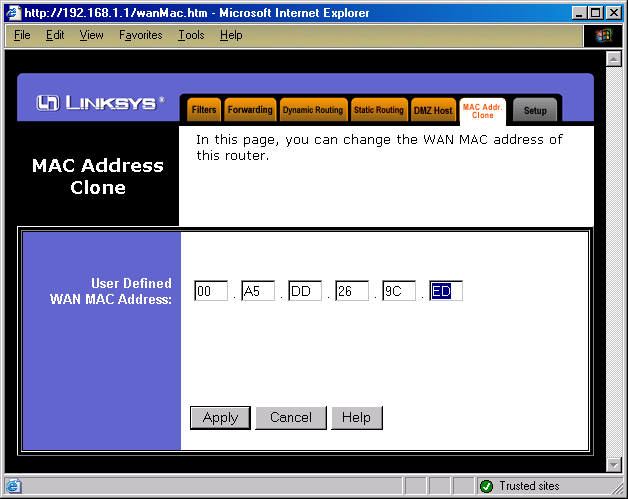
Each Network Card (NIC) has it's own unique MAC Address (like a serial number). And the router has it's own NIC (two actually), so therefore it's own MAC Addresses. Some ISPs track the MAC address of the connected computer either with a registration server or in some cases only with the local modem. Comcast confirmed that they do track the MAC address of the computer connected to their modem, but only locally. If you connect a different computer (MAC Address) to the modem, you need to reboot the modem. Cloning the MAC Address in the router will avoid that aggravation, otherwise when you hook up the router, the modem will see it as a different computer and you won't be able to connect until you reboot the modem. The good news is that with a Linksys router (and most if not all others) you can have the router use any MAC Address you want. The solution is to have it use the MAC of the computer you were last connected with. To get that address, on WIN95 and WIN98 Click Start/Run and type "winipcfg" (no quotes) and press Enter. Use the drop down list to choose your NIC if necessary. Make a note of the "Adapter Address". Be careful of the difference between zeros and the letter O. On W2K/XP, Click Start/Run and type "cmd" (no quotes) and press Enter. In the window that appears, type "ipconfig /all" (no quotes). Note the "Adapter Address". Enter that information on the "MAC Address Clone" page of the router set up. Click "Apply" and you should be done. It's possibly not necessary, but it can't hurt, so I always do it. This way if you have to remove the router for troubleshooting, the modem won't see a new MAC because it will be the same as the one that was cloned in the router.

Port 113 is Ident and is sometimes used to verify that the computer making a connection is the one that's expected. If that's the case, then blocking it can delay or prevent you from making a connection. Some versions of Linksys firmware after 1.44.2 stopped hiding Port 113. The reason appears to be to eliminate some delays in sending email if your mail server checks that port. Previously, to avoid that delay I had to forward that port to my computer, then have my firewall drop the packet from everywhere except my ISPs mail server. Now, if you want that port to be stealthed you'll need to do the reverse of that. Go to the Forwarding tab in the router setup, then enter 113 in both sides of one line of the port ranges. In the IP address block, send it to an unused IP. The same one you're using for the DMZ (.200 in my example) would work fine unless the remote computer is looking for a specific response, my mail server wasn't. For more information on Port Forwarding, and instructions for port forwarding for specific applications, see Portforward.com. This is a good example of why you should recheck your port status after any upgrades at your end.
Router manufacturers and firmware authors have gotten better over the years, so in many cases these should be the defaults, but check to be sure. On the Filters tab, "Block WAN Request" should be enabled and "Remote Management" and "Remote Upgrade" should both be disabled. Block WAN Request is the one that should block pings for you. Look for something similar with other manufacturers if you're having trouble blocking pings. You can test at GRC ShieldsUp (scroll down) to see that it's doing what you expect. The Common Port test includes a test for Ping response. Always recheck your settings and retest after a firmware upgrade.
You're done. In the event of a problem with the router requiring that you reset it to the factory defaults, or if you decide to upgrade the firmware, these changes may need to be repeated.
Finally, if you need to call your ISP because of connection problems, they will almost certainly insist that you bypass the router. Before you do that you can try some of my troubleshooting steps first if you want to. If you do need to bypass the router the easiest way to do this is to simply take the cable that comes from your computer to the "LAN" plug on the router, unplug it from there, unplug the same type of cable (NOT the round TV type of cable) from the back of the modem and plug the first one in there. Don't forget that this causes you to lose any benefit of having the router, because it's not in the loop. This is where a firewall can be essential. Put the cables back as soon as you can. Assuming you're using an "Automatically assigned" IP address on your computer, you may not even need to reboot depending on your OS. If you're using fixed IPs on your computer, then you'll probably need to make some changes there and reboot.
In January 2007 we finally updated from our BEFW11S4 to a WRT54G because the DHCP function on the older router wasn't working properly. Pretty much all of the above stuff is still true, although there's now lots of wireless options. There's absolutely no need to run their easy set up software, just log in to http://192.168.1.1/ with the default password of "admin". The only changes I made to get it up and running was to change the password, change the SSID from the default, enable Logging and clone in the same MAC address that the old router was using. I switched all the cables to the new router and everything worked. A ShieldsUP! test came out all green, so the defaults are acceptable. At least for the ethernet portion. Tim Higgins did a review of this router in June 2005. The firmware has changed markedly since then, as have some of the functions.
On the wireless side the router defaults to some rather weak settings. The "Wireless Network Mode" is set to "Mixed" which is OK, although if all your wireless connections will be "B Only" or "G Only", choose that. The SSID is "Linksys" and "Wireless Security" is set to "Disabled". At a minimum you want to enable the strongest Security Mode that you can, and change the default SSID. For more detailed advice, Google is your friend.
However there's at least one other problem with the WRT54G. Linksys seems to have broken the logging functions. I spent an hour trying to figure out what setting I had wrong before I determined that it was the router. My logging software wasn't getting any data. Same with different software on a different computer with no firewall. If I went to the router configuration pages and then to the Log page, Logging was enabled correctly. I could open the Outgoing Log and there was data in it. But the Incoming Log was empty. It turned out that was due to not enabling the DMZ function. With it off unsolicited inbound packets are simply dropped, if it's enabled then the Incoming Log logs traffic. I called Linksys and worked my way up a couple of layers through some people who had no idea what I was talking about. "Logging, do you mean you can't get to the internet?" I finally got to someone who said he was aware of it, and that he'd talk to his supervisor and see if they could get something done about it. He promised that I'd get an email letting me know the status. I never did get that email though. For the moment it appears that the options are to use third party firmware or do without decent logs. I use my logs for a lot of things, but third party firmware will void the warranty.
After doing some Googling it appears that Linksys has changed the firmware to Syslog logging instead of SNMP Trap. And according to the Linklogger software site and some others that I found they completely disabled external logging for some reason. So if you want that, you'll need to use some third party firmware. Third party firmware also lets you do other things that the stock firmware doesn't. The WRT54G firmware is actually released under the GNU General Public License so there are all sorts of free versions available. See WiFi Planet for an article explaining it. You can get some from dd-wrt.com, Tomato and several other places for free or from sveasoft for 20 US dollars a year, which gives you access to their support functions. Others are listed in the Wi-Fi Planet article. The author of the Tomato firmware lists alternative firmware at the bottom of his page. There's also lots of information on the WRT54G series of routers at Wikipedia.
If you decide to try third party firmware make absolutely certain that it supports your model of router. That's partly because the later versions of the WRT54G (and to a lesser extent the WRT54GL and WRT54GS) have been crippled by Linksys in ways that limit what, if any, third party firmware can be installed. Some use a different chipset that isn't compatible, others have less RAM and Flash RAM so they can't run as many features. You can use the pages at wikipedia.org or dslreports.com to confirm your router model. The serial number is the best indicator if you don't trust the sticker on the bottom of the router.
Another option is to buy a different brand of router that will work with the third party firmware that has the features you want. These DD-WRT and Tomato pages list other brands that can be used.
Disclaimer:
Keep in mind that I am not responsible for any external sites linked to from my pages. They may look different to you, or even have effects on your browser or computer that are different than what I see due to different security settings and browsers. They could have also changed since I looked at them. To the best of my knowledge, they are all safe. But you surf at your own risk.
This document reflects the opinions of the author. This document is provided "as is" without any express or implied warranties. While every effort has been taken to ensure the accuracy of the information contained in this article, the author/maintainer and/or contributors assume(s) no responsibility for errors or omissions, or for damages resulting from the use of the information contained herein.
Privacy Policy:
The only information that I collect is page hit counts. My web host Penguinhost.net keeps track of lots of things and makes the information available to me in pretty graphs and logs. I look at them occasionally, but there is no personally identifiable information there.
Validated by HTML Validator (based on Tidy)

This page was last updated Nov 26, 2009.
Copyright 2006-2009 by Kevin